
指南 & 故障排除
分步说明、常见问题解决方案与最佳实践,帮助你充分发挥 FileZilla 的价值。
如何连接到服务器
Quick answer: Open FileZilla, enter your host, username, password, and port (21 for FTP, 22 for SFTP), then click Quickconnect. For saved profiles, use File > Site Manager (Ctrl+S).
方式 1:Quick Connect
- 安装后打开 FileZilla。
- 在 Quick Connect 工具栏的 主机 字段输入服务器主机名或 IP 地址。
- 在对应字段输入用户名和密码。
- 设置端口:FTP 使用 21,SFTP 使用 22,或使用主机提供商指定端口。
- 点击 Quickconnect,并在底部 Status 面板查看连接结果。
Note: Quick Connect stores only the last 10 entries and does not save credentials permanently.
方式 2:Site Manager(推荐)
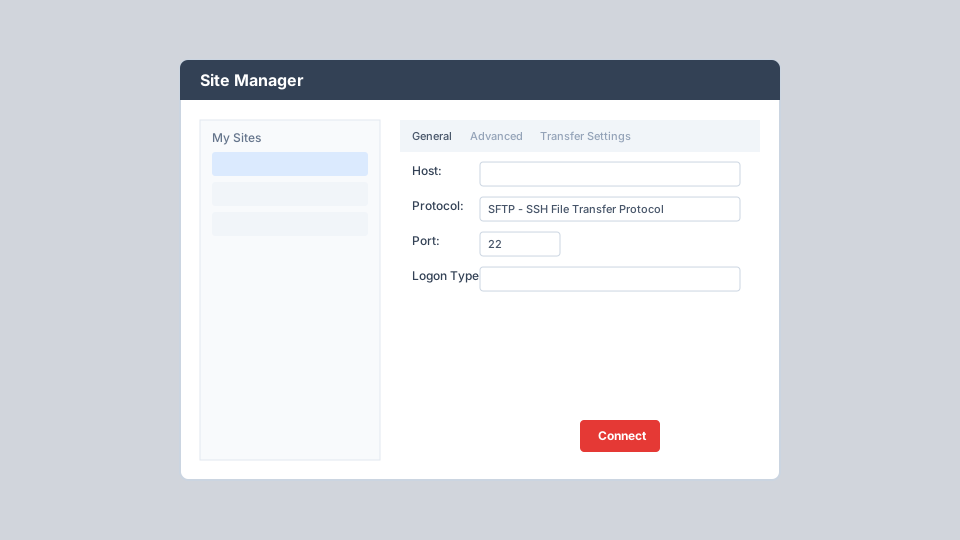
- Go to File > Site Manager or press Ctrl+S (Cmd+S on Mac).
- Click New Site and give it a descriptive name.
- Enter 主机, select 协议 (FTP, SFTP, or FTPS), and set Port.
- Choose Logon Type and enter credentials or key file path.
- Optionally set default local and remote directories on the Advanced tab.
- Click Connect to establish the session.
Site Manager 使用技巧
可用时优先使用 SFTP
Always prefer SFTP (port 22) over plain FTP (port 21) when your server supports it. SFTP encrypts all data and credentials in transit.
设置默认目录
Configure default local and remote directories so FileZilla opens directly to your project folder and web root (e.g., /public_html) on connect.
Limit Simultaneous Connections
On the Transfer Settings tab, enable connection limits if your shared host restricts parallel FTP sessions to avoid being blocked.
启用同步浏览
Turn on synchronized browsing so navigating a folder on the local side automatically navigates the matching path on the remote side.
配置字符集
If filenames display incorrectly, set the appropriate charset (UTF-8 is recommended) on the Charset tab for that site.
使用文件夹组织
Group related sites into folders within Site Manager when managing multiple clients or environments (production, staging, development).
文件传输最佳实践
Upload Files via Drag-and-Drop
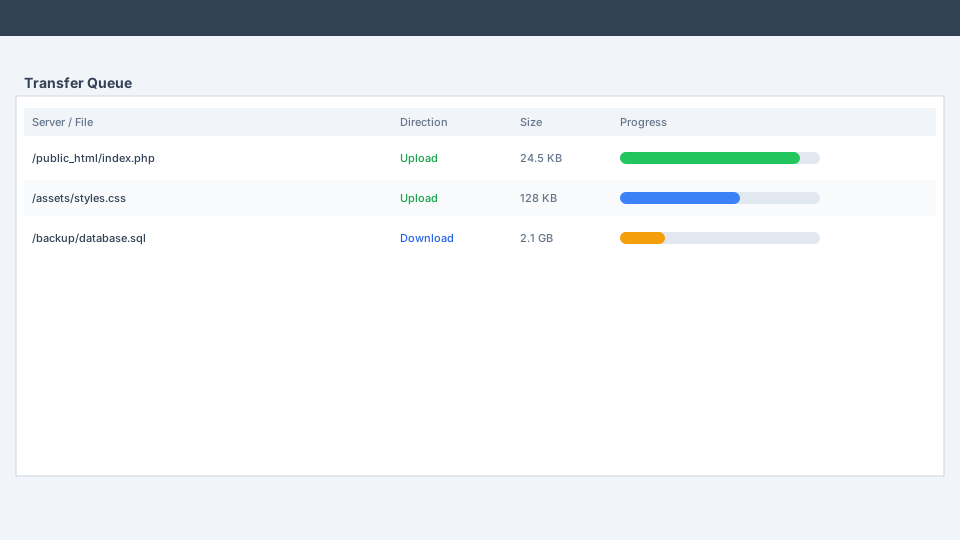
Select files in the Local site panel and drag them to the desired directory in the Remote site panel. Transfers begin automatically and appear in the queue at the bottom.
同步前先进行目录比较
Go to View > Directory Comparison and choose comparison criteria (size, date, or both). Color-coded results show identical, different, and missing files before you transfer.
Queue Large Batches
For large deployments, add files to the queue instead of transferring immediately. Right-click selected files and choose Add to Queue, then start all transfers at once from the queue panel.
Verify Uploads in Your Browser
After uploading website files, open your domain in a web browser to confirm changes are live. Check the Status panel for any failed transfers that need retrying.
常见问题与解决方案
连接超时
Cause: Firewall blocking FTP data ports, incorrect passive/active mode, or wrong hostname.
Solution: Run the 网络配置向导 (Edit > 网络配置向导). Set transfer mode to Passive. Verify the hostname resolves correctly and that your firewall allows FileZilla through.
身份验证失败
Cause: Incorrect username, password, or logon type. Using FTP credentials for an SFTP connection or vice versa.
Solution: Double-check credentials with your hosting provider. Ensure the 协议 in Site Manager matches what your server supports. For SFTP with keys, select Key file logon type and point to your private key.
传输失败或卡住
Cause: Unstable network, server connection limits, or file permission issues on the remote server.
Solution: Enable transfer resume in settings. Reduce simultaneous connections in Site Manager Transfer Settings. Check remote file permissions and available disk space on the server.
证书验证失败(FTPS)
Cause: The server's SSL certificate is self-signed, expired, or issued for a different hostname.
Solution: If you trust the server, you can accept the certificate when prompted. For production environments, ensure the server uses a valid certificate from a trusted certificate authority.
Filenames Display as Question Marks or Gibberish
Cause: Character encoding mismatch between client and server.
Solution: In Site Manager, go to the Charset tab and set the character set to UTF-8 or the encoding specified by your server administrator.
来自此 IP 的连接过多
Cause: Exceeding the maximum simultaneous FTP connections allowed by shared hosting.
Solution: In Site Manager Transfer Settings, check Limit number of simultaneous connections and set Maximum to 1 or 2. Close unused tabs connected to the same server.
杀毒警告说明
部分杀毒产品会将 FileZilla 安装程序标记为潜在不需要程序。这是影响许多合法 FTP 客户端的行业已知问题,并不表示 FileZilla 含有恶意软件。该标记通常与第三方下载包装器中的可选捆绑软件或对网络应用的启发式检测有关。
What You Should Do
- 下载 FileZilla only from the official file-zilla.org download page
- Verify the SHA-1 checksum matches the published value
- During installation, read each prompt carefully and decline optional bundled software
- If your antivirus quarantines FileZilla after a verified download, add it to your exclusion list
- Report false positives to your antivirus vendor so they can update their definitions
What FileZilla Does NOT Do
- Install hidden cryptocurrency miners or botnet software
- Collect passwords or keystrokes from your system
- Modify system files without your consent
- Connect to unauthorized servers without your configuration
- Include adware or browser hijackers in the core client application