
Руководства & Устранение неполадок
Пошаговые инструкции, решения типовых проблем и лучшие практики, чтобы получить максимум от FileZilla.
Как подключиться к серверу
Quick answer: Open FileZilla, enter your host, username, password, and port (21 for FTP, 22 for SFTP), then click Quickconnect. For saved profiles, use File > Site Manager (Ctrl+S).
Метод 1: Quick Connect
- Open FileZilla after installation.
- Enter your server hostname or IP address in the Хост field of the Quick Connect toolbar.
- Enter your username and password in the corresponding fields.
- Set the Port: use 21 for FTP, 22 for SFTP, or the port specified by your hosting provider.
- Click Quickconnect and watch the Status panel at the bottom for connection results.
Note: Quick Connect stores only the last 10 entries and does not save credentials permanently.
Метод 2: Site Manager (рекомендуется)
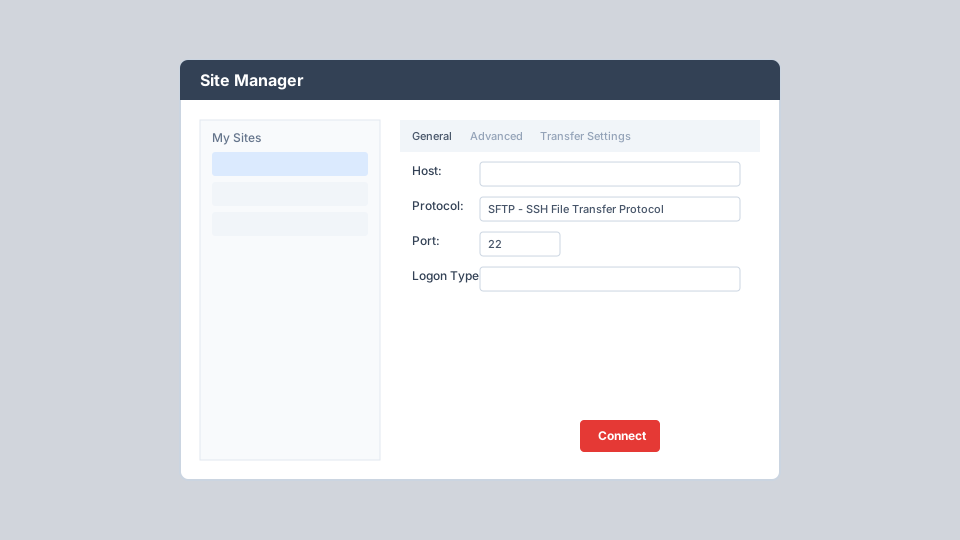
- Go to File > Site Manager or press Ctrl+S (Cmd+S on Mac).
- Click New Site and give it a descriptive name.
- Enter Хост, select Протокол (FTP, SFTP, or FTPS), and set Port.
- Choose Logon Type and enter credentials or key file path.
- Optionally set default local and remote directories on the Advanced tab.
- Click Connect to establish the session.
Советы по Site Manager
Use SFTP When Available
Always prefer SFTP (port 22) over plain FTP (port 21) when your server supports it. SFTP encrypts all data and credentials in transit.
Set Default Directories
Configure default local and remote directories so FileZilla opens directly to your project folder and web root (e.g., /public_html) on connect.
Limit Simultaneous Connections
On the Transfer Settings tab, enable connection limits if your shared host restricts parallel FTP sessions to avoid being blocked.
Включить синхронизированный просмотр
Turn on synchronized browsing so navigating a folder on the local side automatically navigates the matching path on the remote side.
Configure Character Sets
If filenames display incorrectly, set the appropriate charset (UTF-8 is recommended) on the Charset tab for that site.
Organize with Folders
Group related sites into folders within Site Manager when managing multiple clients or environments (production, staging, development).
File Transfer Best Practices
Upload Files via Drag-and-Drop
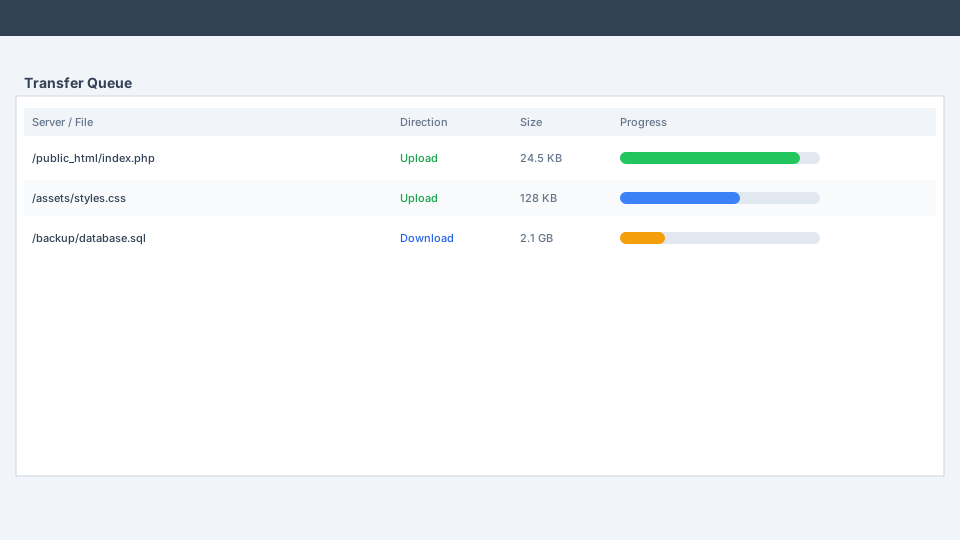
Select files in the Local site panel and drag them to the desired directory in the Remote site panel. Transfers begin automatically and appear in the queue at the bottom.
Сравнивайте каталоги перед синхронизацией
Go to View > Directory Comparison and choose comparison criteria (size, date, or both). Color-coded results show identical, different, and missing files before you transfer.
Queue Large Batches
For large deployments, add files to the queue instead of transferring immediately. Right-click selected files and choose Add to Queue, then start all transfers at once from the queue panel.
Verify Uploads in Your Browser
After uploading website files, open your domain in a web browser to confirm changes are live. Check the Status panel for any failed transfers that need retrying.
Common Problems & Solutions
Время подключения истекло
Cause: Firewall blocking FTP data ports, incorrect passive/active mode, or wrong hostname.
Solution: Run the Network Configuration Wizard (Edit > Network Configuration Wizard). Set transfer mode to Passive. Verify the hostname resolves correctly and that your firewall allows FileZilla through.
Ошибка аутентификации
Cause: Incorrect username, password, or logon type. Using FTP credentials for an SFTP connection or vice versa.
Solution: Double-check credentials with your hosting provider. Ensure the Протокол in Site Manager matches what your server supports. For SFTP with keys, select Key file logon type and point to your private key.
Передача прерывается или зависает
Cause: Unstable network, server connection limits, or file permission issues on the remote server.
Solution: Enable transfer resume in settings. Reduce simultaneous connections in Site Manager Transfer Settings. Check remote file permissions and available disk space on the server.
Certificate Verification Failed (FTPS)
Cause: The server's SSL certificate is self-signed, expired, or issued for a different hostname.
Solution: If you trust the server, you can accept the certificate when prompted. For production environments, ensure the server uses a valid certificate from a trusted certificate authority.
Filenames Display as Question Marks or Gibberish
Cause: Character encoding mismatch between client and server.
Solution: In Site Manager, go to the Charset tab and set the character set to UTF-8 or the encoding specified by your server administrator.
Слишком много подключений с этого IP
Cause: Exceeding the maximum simultaneous FTP connections allowed by shared hosting.
Solution: In Site Manager Transfer Settings, check Limit number of simultaneous connections and set Maximum to 1 or 2. Close unused tabs connected to the same server.
Пояснение по предупреждениям антивируса
Некоторые антивирусные продукты помечают установщики FileZilla как потенциально нежелательные программы. Это известная проблема отрасли, затрагивающая многие легитимные FTP-клиенты, и не означает, что FileZilla содержит вредоносное ПО. Обычно это связано с дополнительным ПО в сторонних обертках установщика или эвристическим обнаружением сетевых приложений.
Что вам следует сделать
- Скачать FileZilla only from the official file-zilla.org download page
- Verify the SHA-1 checksum matches the published value
- During installation, read each prompt carefully and decline optional bundled software
- If your antivirus quarantines FileZilla after a verified download, add it to your exclusion list
- Report false positives to your antivirus vendor so they can update their definitions
Чего FileZilla НЕ делает
- Install hidden cryptocurrency miners or botnet software
- Collect passwords or keystrokes from your system
- Modify system files without your consent
- Connect to unauthorized servers without your configuration
- Include adware or browser hijackers in the core client application